What TouchWMS adds to your ERP's allocation
FIFO and FEFO without ERP lot control
TouchWMS can run lot control, so it doesn't have to be turned on in the ERP. It numbers lots in sequence and passes them back to the ERP, so allocation can take the oldest stock first or the earliest expiry first.
Shelf-life rules by customer
Some customers only accept product with a minimum shelf life. TouchWMS can apply that as a custom allocation rule, so older stock can't be allocated or picked for their orders.
Fewer picks, or bins cleared for receiving
The Efficient strategy fills each order line with the fewest pick tasks. Pick Clean clears small bins first, which frees locations for incoming stock.
One order line is allocated by hand from bins the user picks. Then Auto Allocation fills many lines at once by strategy, with a preview before anything is saved. Saved allocations go to the ERP, which stays the system of record.
Chapters
Key screens
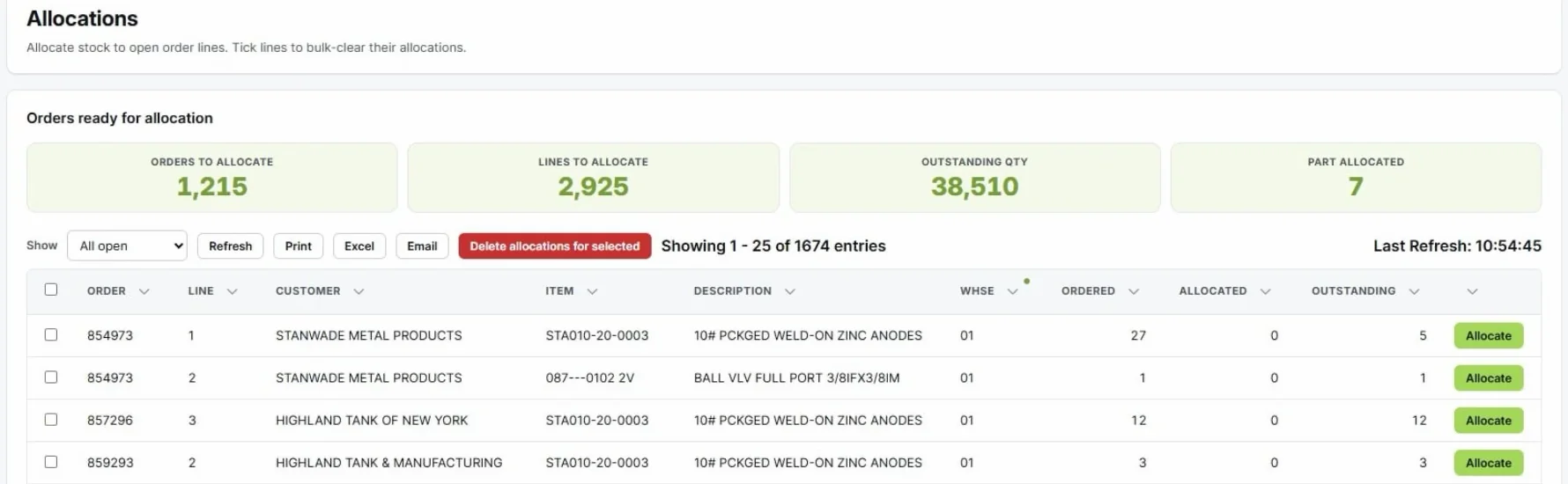
The Allocations list. Order lines that still need stock, with KPI tiles at the top. Allocate opens a line.
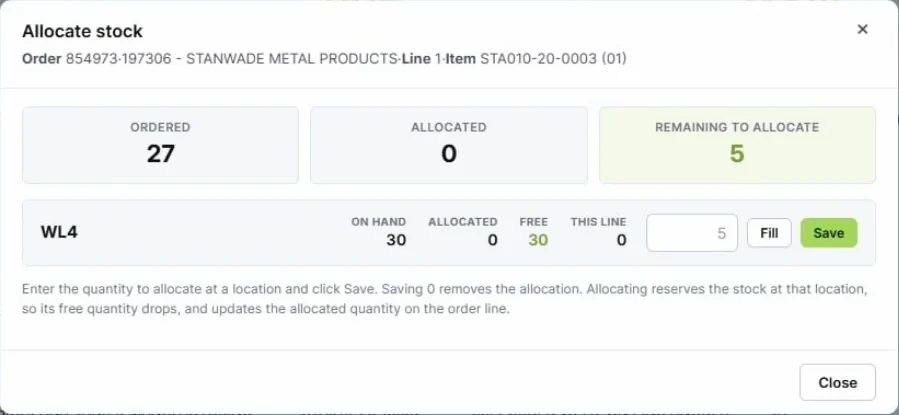
The Allocate stock window. It lists the bins with free stock of the item. Fill selects the bin and Save confirms the allocation.
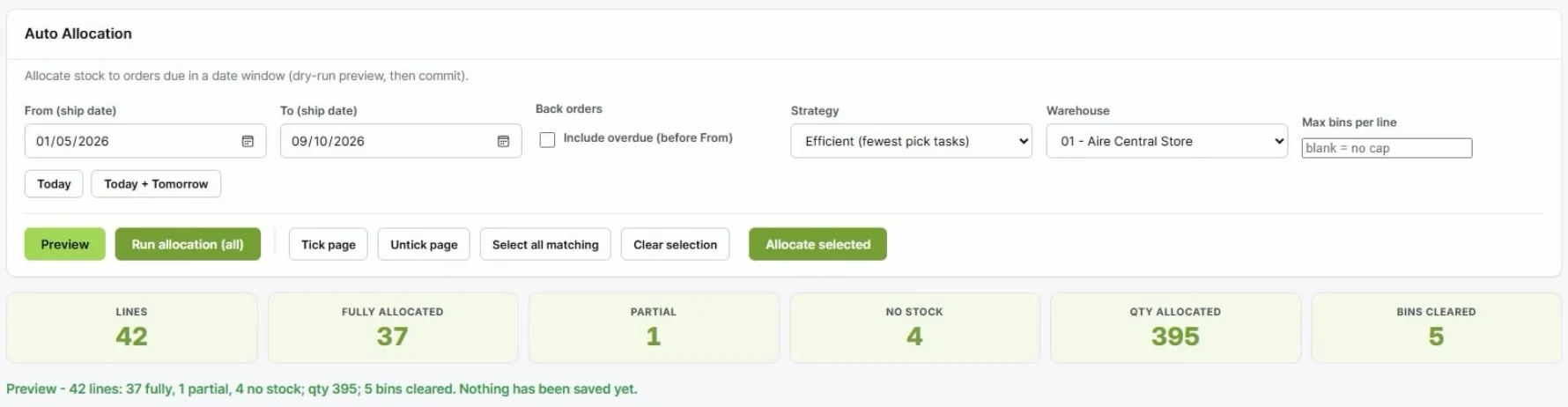
Auto Allocation. Set the ship-date window, strategy and warehouse, then preview. The KPI tiles show how many lines can be fully or partly allocated and how many have no stock.
Transcript
Read the transcript(about 840 words)
Home page and Quick Access
Welcome to this demonstration of TouchPath's TPSuite Manual and Automatic Allocation functions. Each user has a personal login which takes them to their Home Page. Your personal home dashboard contains a grid of widgets you can pin, arrange and configure to show the numbers and shortcuts that matter to your role. You can change the content and layout of your Home page and your new layout is saved automatically and is specific to you. Quick Access gives you shortcuts to access the system functions you use most. You can add or remove shortcuts by clicking the Gear icon. I will add Allocations and Auto Allocations to my Quick Access options. Saving my changes. I can now select Allocations to take me directly to the Manual Allocation option.
Allocate an order line manually
Any list displayed within the system has KPI tiles at the top giving summary information about the list being displayed. The list shows all order lines requiring stock. I want to allocate the 2 lines for order 854973 so I select line 1 to allocate by clicking the Allocate button. The allocation screen shows me all bin locations holding free stock of the required item. Clicking Fill selects the bin or bins from which the allocation for this order line will be made. Clicking Save updates the WMS Allocations table and the allocation is immediately sent to the ERP as that remains your system of record.
Remove an allocation
Then I select Line 2. However, there is no available stock for this item and there are no existing allocations for this item on another order line which I might want to re-allocate. So I will select Line 1 by clicking the check box and delete the allocation I made, as I want to ship both lines together for this customer. The allocation deletion is immediately sent to the ERP. So line 1 still requires 5 to be allocated.
Preview Auto Allocation
Next I will return to my dashboard and select Auto Allocation from my Quick Access tile. Auto Allocation allocates stock to many order lines at once for orders due within a chosen ship-date window. You can Preview the result first (with no changes made), then run it to commit. I have changed the From Date to May 1, 2026 to bring in some orders, and then I click Preview.
Compare strategies
Strategy options determine how stock is chosen: Warehouse default (which management set), FEFO (earliest expiry first which is only available if any of Lot Control, Carton Control or Pallet Control are in use), Pick Clean (which clears small bins first) or Efficient (giving the fewest pick tasks per order line). I will start by setting Strategy to Pick Clean and click Preview. On all lists in the system, you will notice a chevron against each of the column headings. Clicking this displays a pull-down of options I can use to either customize the list or filter the data to display. I can sort on this column A-Z or Z-A, I can hide this column so it will no longer display whenever I use this list, I can re-add a column I've previously hidden by clicking the columns option or I can filter the records to display based on the contents of this column. I will Filter on order number 9990033. Order 9990033 has only one line, and you can see that if I were to run the allocation with this strategy then this order line will allocate from 2 bins. With 22 being allocated from bin AB01B2 which will empty the bin and the balance of 8 will be allocated from bin AB01D2. If I change the Strategy to Pick Efficient and click Preview. You can see the system is now suggesting the total requirement be allocated from AB01D2. And if I now clear the filter it will display all lines again.
Choose the warehouse and lines
Under the Warehouse tab I can select which warehouse I want stock allocated from. As we've seen the Preview button does a dry run that shows what would be allocated without making any changes. Run allocation (all) allocates stock to all the matching order lines. The Tick Page button selects all lines on the current screen so you can then Allocate Selected. And the Untick Page deselects all lines on the current screen and Select All Matching selects all lines in the list. Alternatively you can select specific lines individually for allocation. The KPI tiles show how many lines are in the list, how many lines can be Fully Allocated, how many lines will be Partially allocated, how many for which there is No Stock, the total quantity of units Allocated and the number of Bins Cleared.
Override a suggested bin
To review suggested allocations for a specific order line, clicking on an Item opens a Manual Allocate stock window, which shows every bin with free stock of the required Item, highlighting the bin the strategy would use. You can then allocate an alternative bin manually to override the system suggested bin. To apply the change click Close. Thank you for watching this brief introduction to the new TPSuite Warehouse Management System Allocation routines.
See TouchWMS allocation live
Tell us how you allocate stock today and which ERP you run, and we will set up a demo.